From Cloudways to Hostinger #1: The Shockingly Easy 1-Click Website Migration (No Backup Needed!)
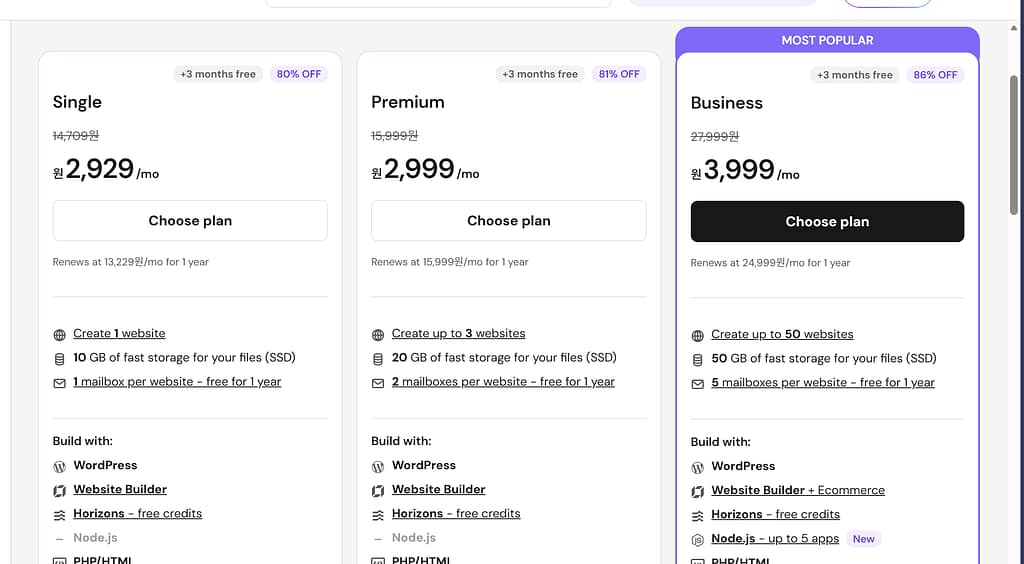
Switching web hosts is usually a nightmare. When I decided to move my profitable English blog, dailypickstoday.com, from Cloudways to Hostinger to save on monthly fees (slashing my cost from $11 to $4!), I braced myself for technical chaos.
I’ll be honest: the subsequent DNS and Nameserver setup was difficult (I’ll cover that “Setup Hell” in my next post). However, the actual migration—the process of transferring my files—was unbelievably easy.
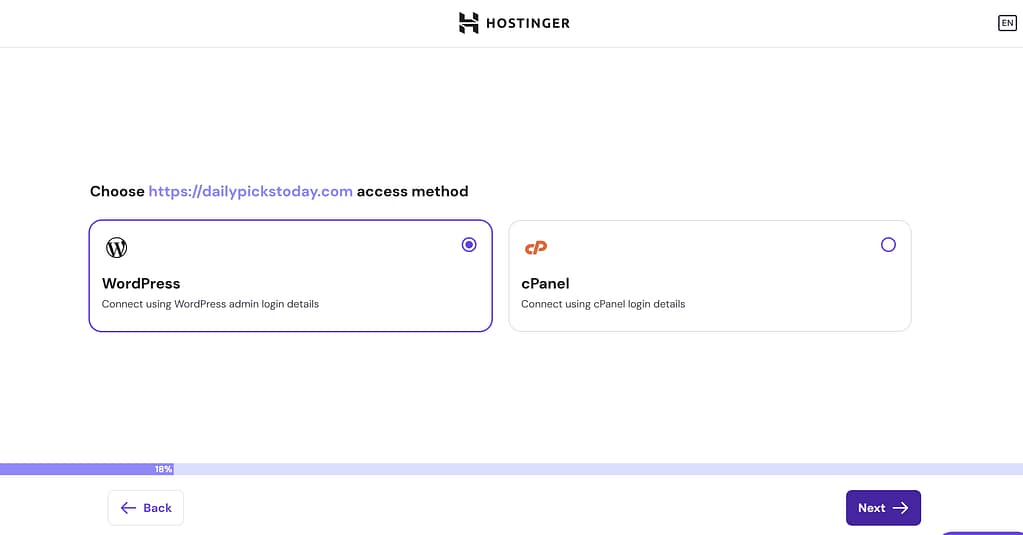
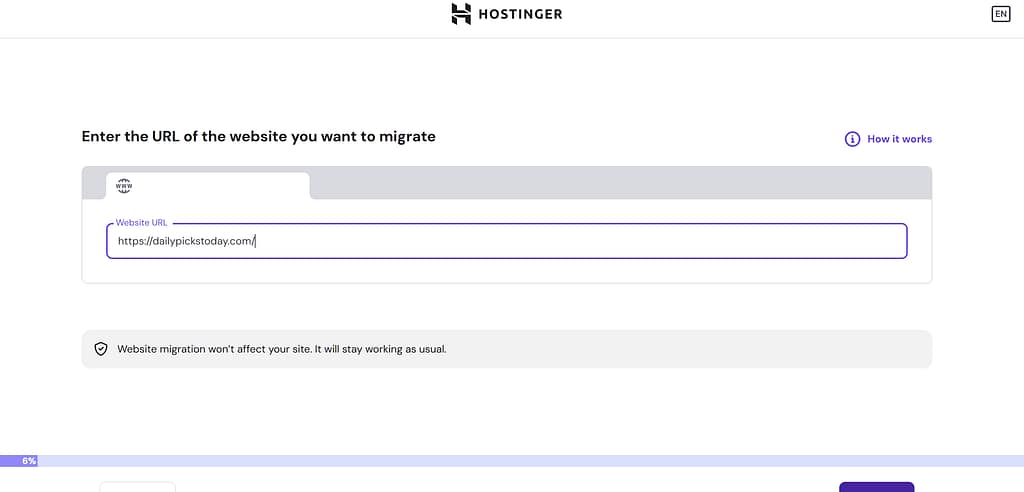
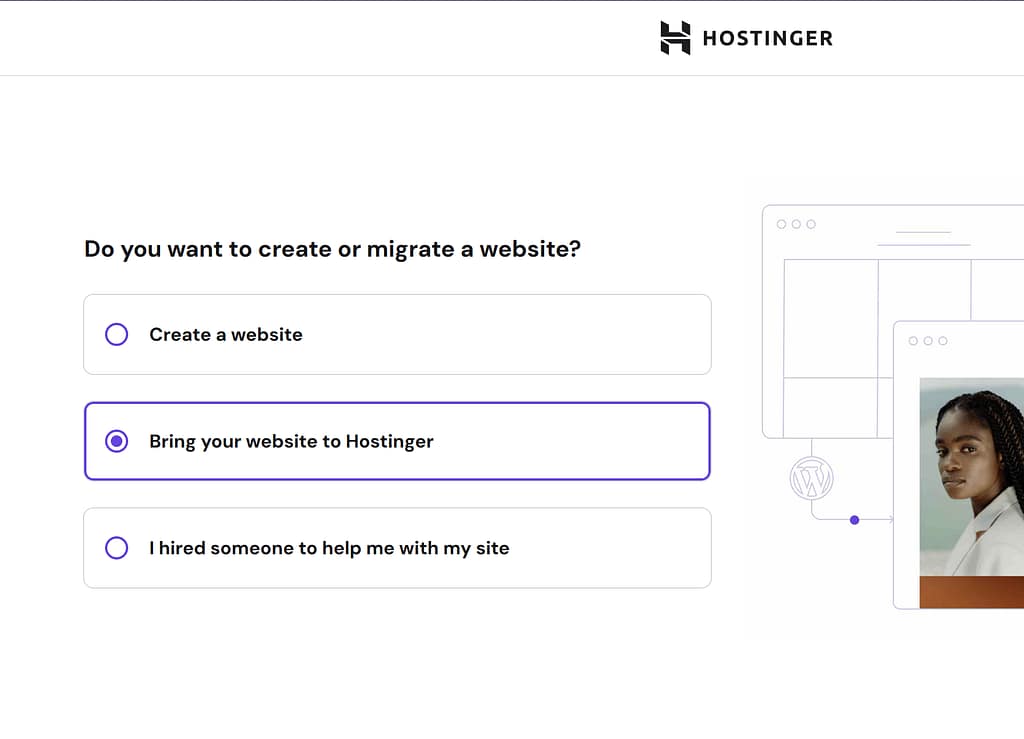
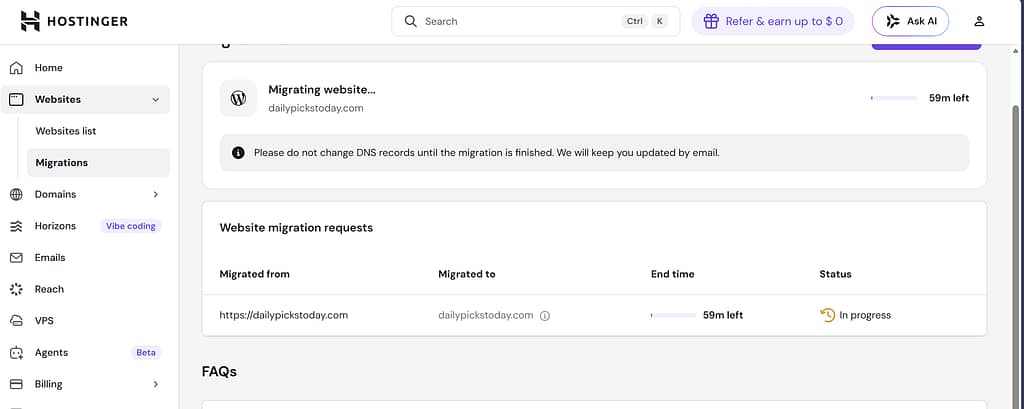
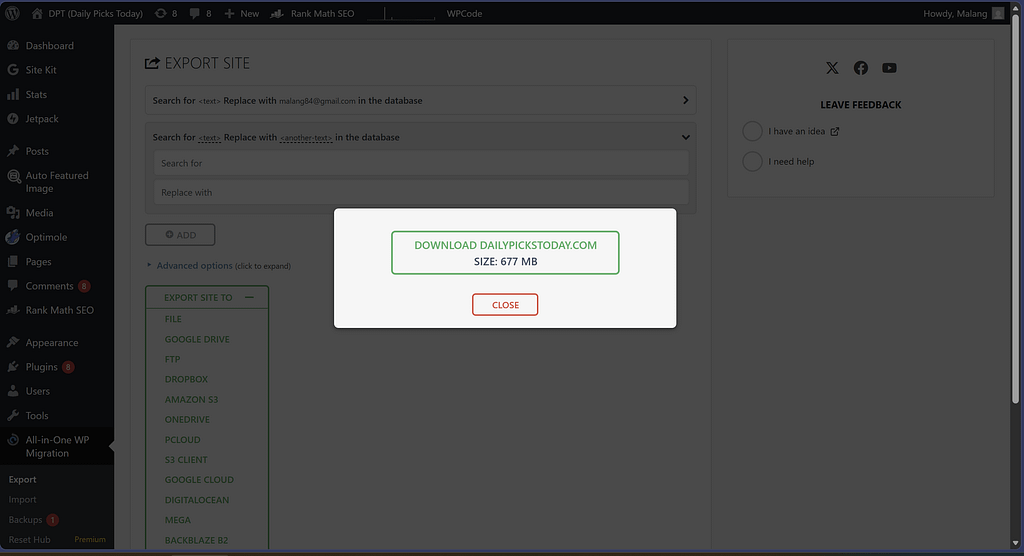
Hostinger’s automation handles everything. While I had downloaded my backup as an “insurance policy,” I never needed it. If you are a beginner, you don’t need to be scared of the file transfer. Here is a step-by-step look at how smooth the migration process itself was, using captures from my actual journey.
Part 1: Files Transferred in Minutes (The Grey ‘Connecting’ Status)
Once I signed up for Hostinger’s Business plan and used their built-in migration tool (just 1-click!), the system took over. In minutes, the files were on the new NVMe SSD server.
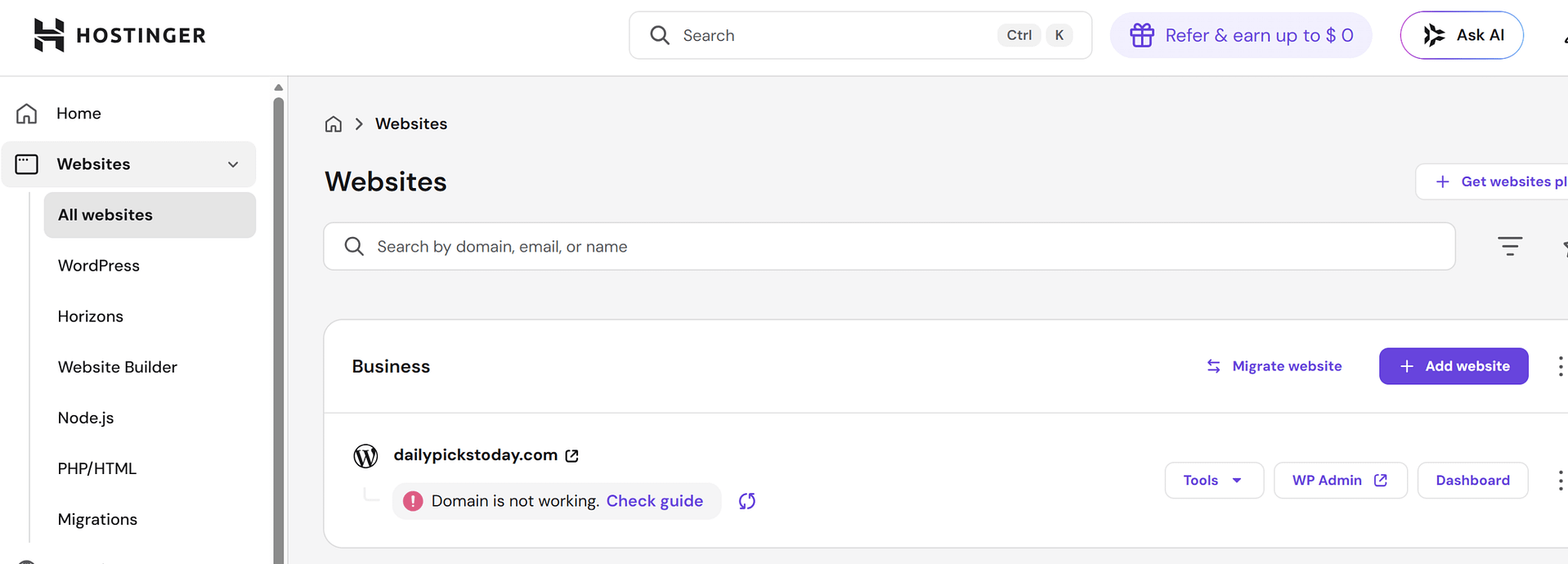
The first thing I saw in my Hostinger hPanel was this reassuring sight:
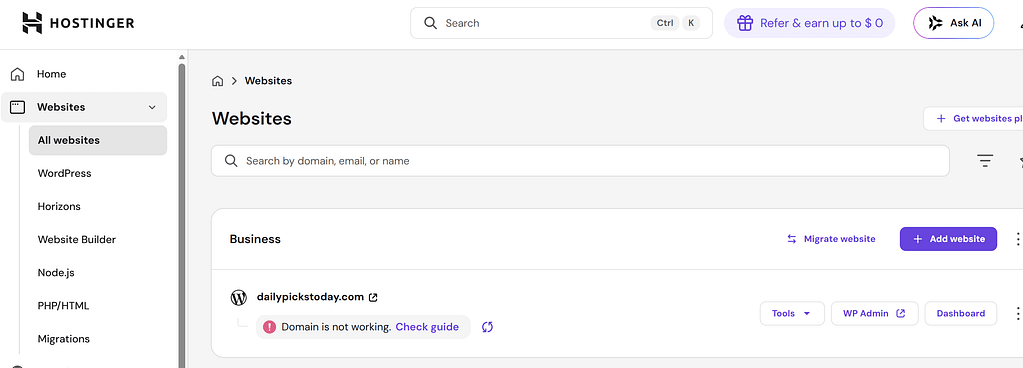
What does this image mean?
The files are already moved! Hostinger gives you this “Domain is connecting” message because the content is on their server, but the domain (dailypickstoday.com) still needs to be technically “pointed” there. At this stage, I knew my files were safe on the new, faster NVMe infrastructure.
Part 2: Preparing for the Final Step (Finding Your New IP)
The file transfer was so fast that I was immediately ready for the final step: telling my domain registrar (Namecheap) where my new home was. Hostinger makes this incredibly simple.
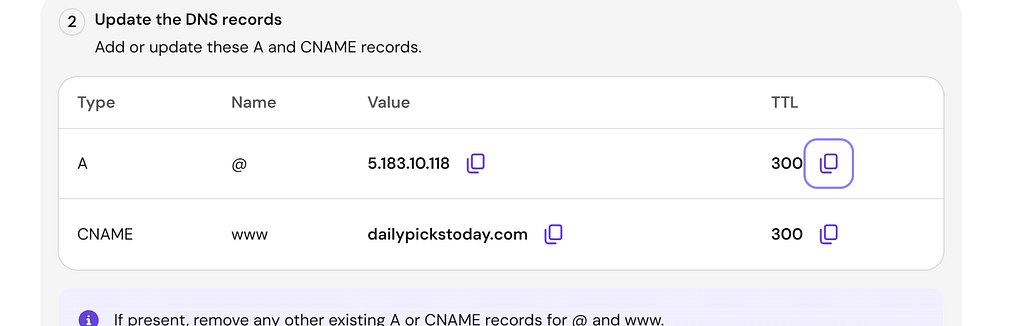
Pro Tip from the hPanel:
Look at this screen. Hostinger gives you a simple list of the DNS records you need to update at your domain registrar. The most important numbers were the A record value (5.183.10.118). This is the physical address of my new Hostinger server.
Knowing these numbers meant the migration (file transfer) was technically complete, and I was ready to handle the external domain settings.
Part 3: Confirmation: SSL Active and Site Live!
Skipping over the Nameserver setup (which, again, was the tricky part, covered here: [Link to From Cloudways to Hostinger #2: Troubleshooting Guide]), once I got the domain correctly pointed, Hostinger’s automation took over again.
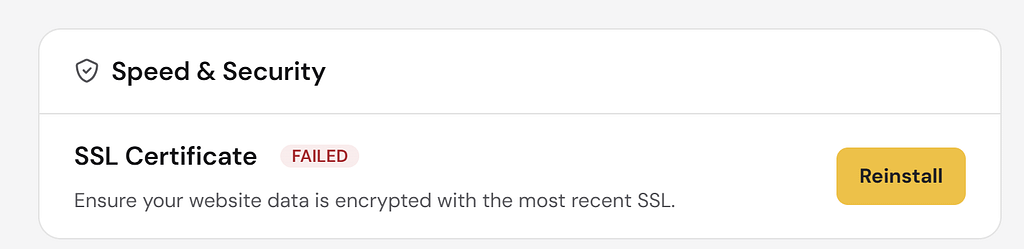
Within minutes of the DNS connecting, Hostinger automatically installed the Free Lifetime SSL. My site, dailypickstoday.com, was live, secure, and blazing fast on NVMe storage. I didn’t have to click a single button to get the SSL padlock! The system knew my site was pointed correctly and handled the rest.
The speed on the new home is incredible, and I am highly satisfied with the NVMe performance.
Part 4: The Final Step: Confirmed Zero Billing at Cloudways
With my site running perfectly on Hostinger, it was time for the final act: ensuring I would never be charged again by Cloudways. I went to the Cloudways dashboard, and because I had successfully migrated everything, I was able to delete my old server.
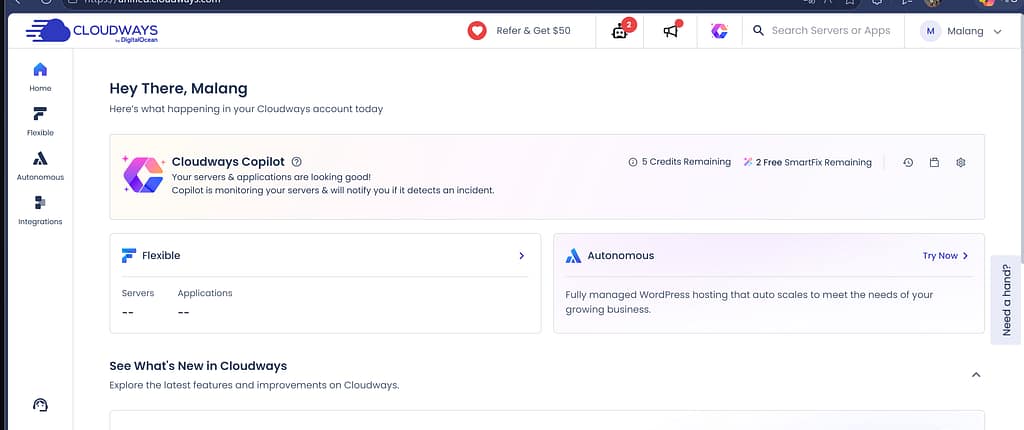
Look at that beautiful Servers: --!
This is the final confirmation that the migration loop is closed. By deleting the server, I guaranteed that Cloudways would stop charging me. I am now officially a happy Hostinger customer, saving money every month on a superior, faster server.
Summary: If the File Transfer is Holding You Back, Don’t Be Scared!
Hostinger has modernized the website migration process. The era of manual FTP transfers and manual database imports is over. They handle the files with incredible ease.
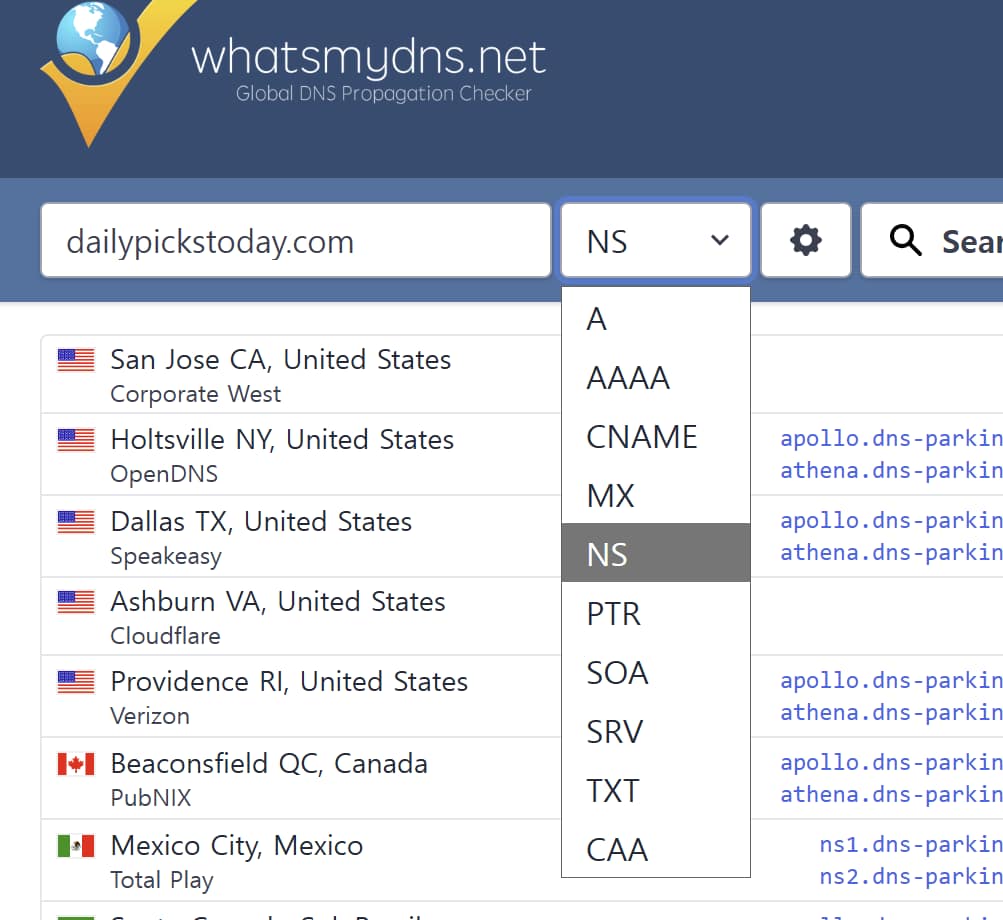
The hard part is the setup. If you are struggling with the final step (getting the “DNS Zone” to activate, handling Nameserver priority issues, or solving “Domain not found” errors), you are not alone. My entire 10-hour battle was fought after the file transfer was done.
To learn how to escape the “Nameserver priority hell” I encountered, check out my detailed troubleshooting guide here:
👉 [From Cloudways to Hostinger #2: Troubleshooting the Athena/Apollo Nameserver Hell]
But for today, celebrate how easy it is to move your files! Happy blogging from my new NVMe home!